InPath: Finding a way that works for you
Finding your way through an unfamiliar building isn't always easy, especially for people with disabilities. Something as simple as locating an elevator, avoiding stairs, or finding an accessible entrance can make getting to a destination more difficult than it needs to be.
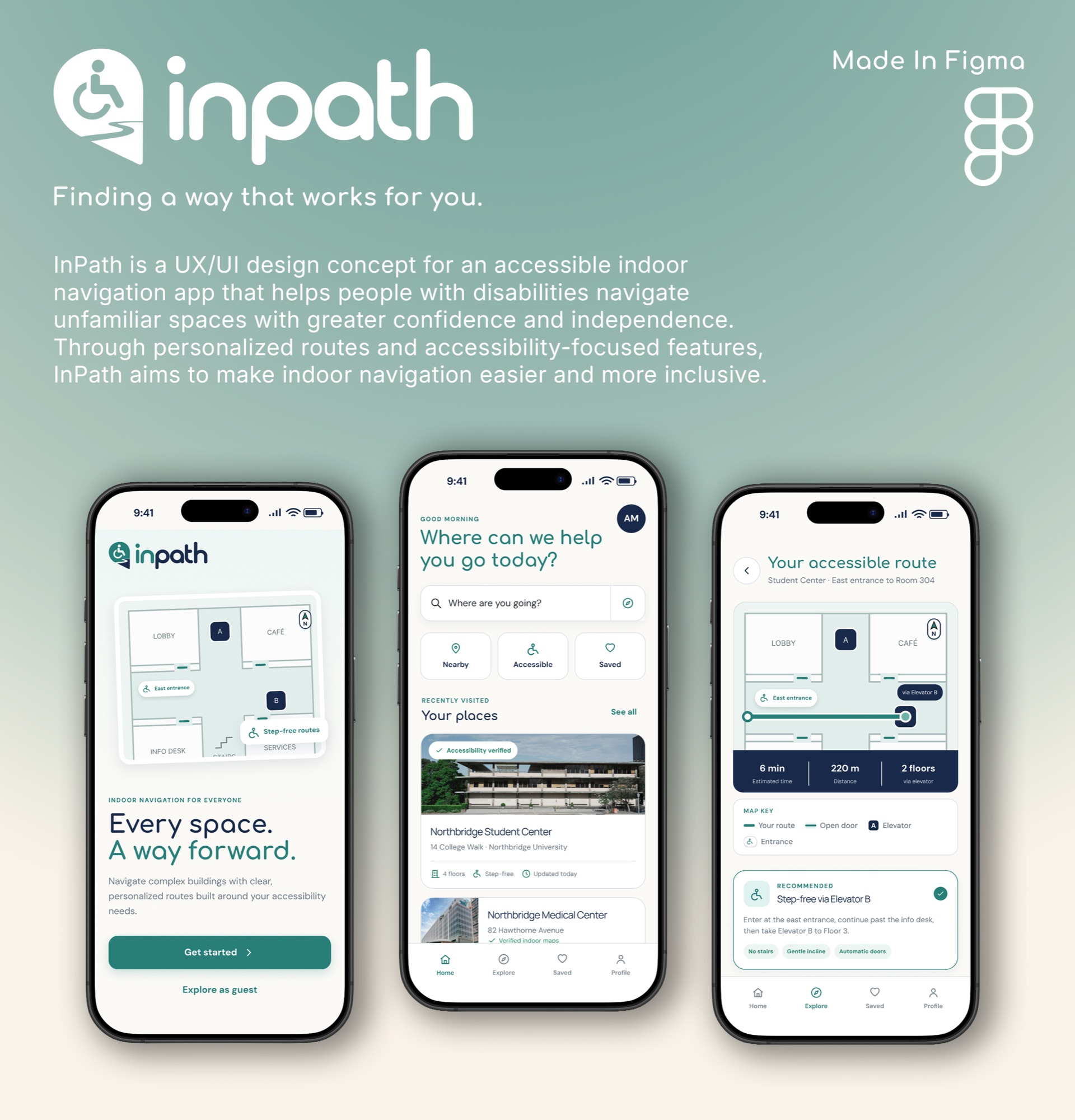
InPath is an indoor navigation app concept I designed to help people with disabilities find accessible routes through places like schools, hospitals, and shopping centers. Instead of giving everyone the same directions, the app focuses on helping users find routes that work for their individual needs.
Not every route works for everyone.
Most navigation apps focus on getting people to their destination as quickly as possible, but the fastest route isn't always accessible.
For someone using a wheelchair, navigating a building with stairs or inaccessible entrances can mean having to turn around and find another way. Someone with limited vision may struggle with small signs or directions that rely too heavily on maps.
I wanted to explore how an indoor navigation app could make these situations easier by giving people more information about their route before they start.
Design an indoor navigation app that helps people with different disabilities find accessible routes and navigate unfamiliar buildings more independently?
Making accessibility part of navigation.
My main goal was to create an app that makes indoor navigation easier for people with different accessibility needs. I focused on three things:
Accessibility
Help users find elevators, accessible entrances, and routes that avoid obstacles like stairs.
Simplicity
Keep the app easy to understand with clear directions and features that aren't difficult to find.
Independence
Give users more control over how they navigate a building without having to rely on someone else for directions.
InPath: A path that works for you.
I chose the name InPath because I wanted it to represent finding your own way through a space. I also liked how the idea behind the name connects to empathy, since the app is about understanding that not everyone experiences a building the same way.
Instead of expecting everyone to follow one route, InPath focuses on giving people options based on their accessibility needs. I wanted the name to be short, easy to remember, and connected to what the app is meant to do.

Different people, different needs.
When developing InPath, I thought about the different challenges people with disabilities might face when navigating unfamiliar buildings.
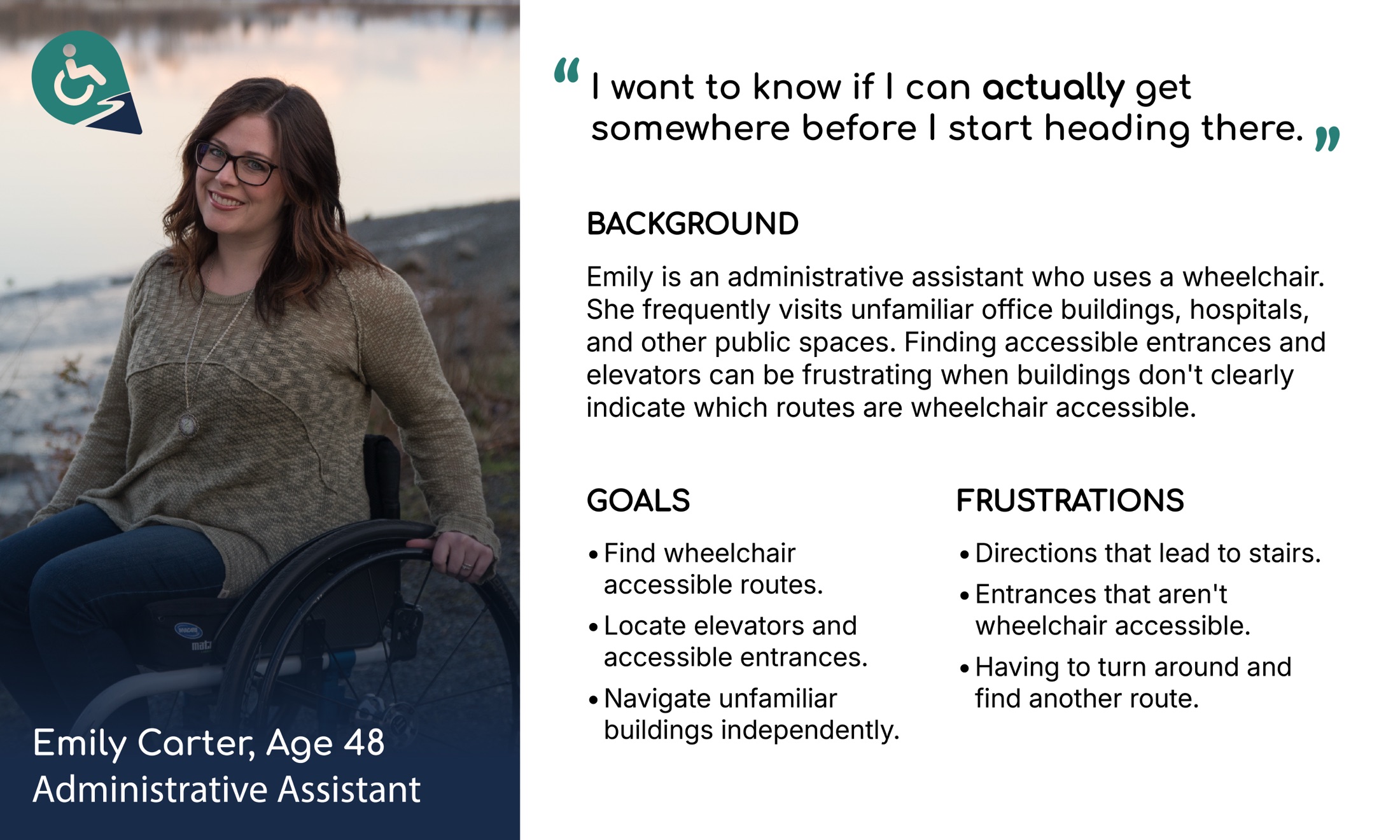
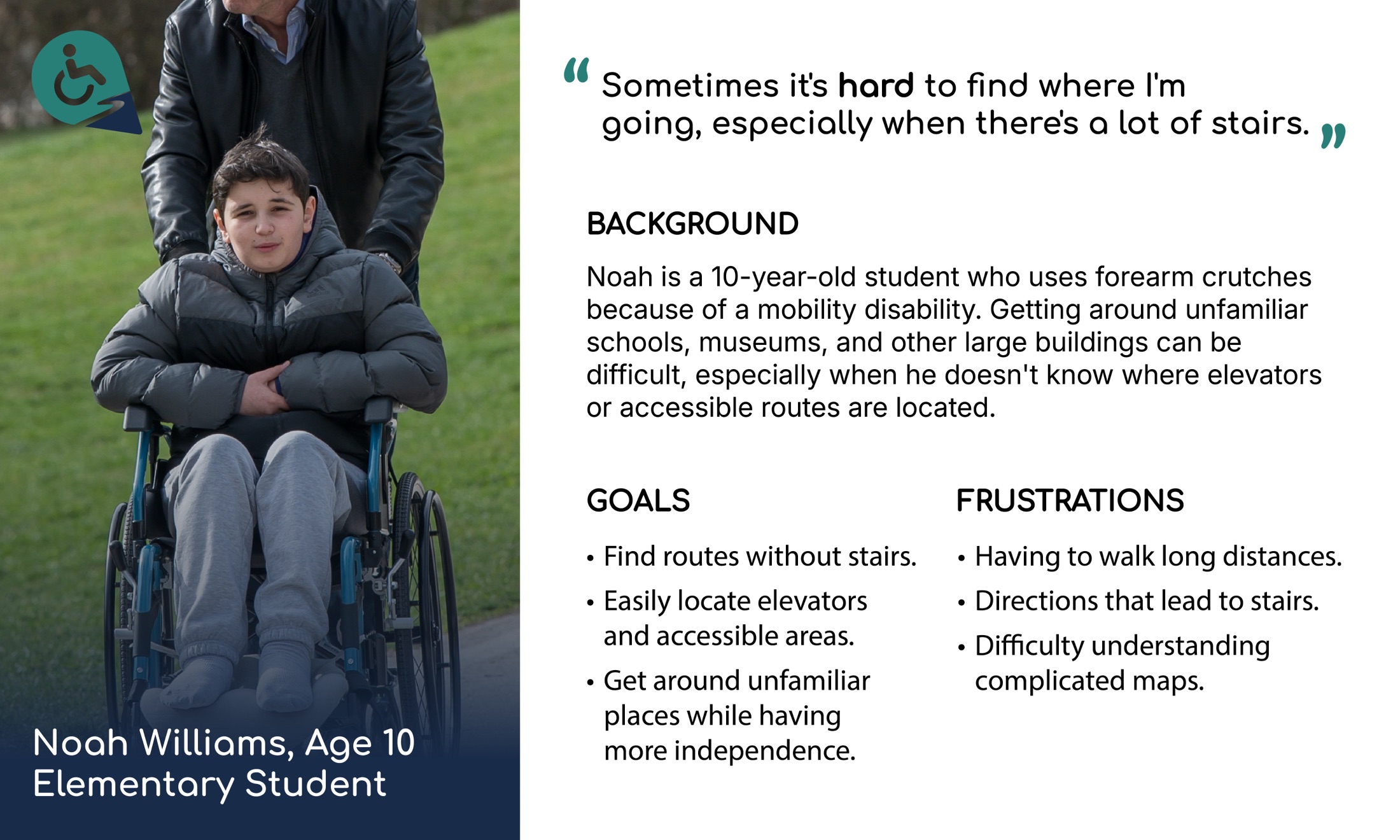
Someone who uses a wheelchair may need to find a step-free route, while a child with limited mobility might need directions that are simple and easy to follow. Someone with partial vision loss may need larger text or audio instructions instead of relying entirely on a map.
These situations helped me think about how the app could work for people of different ages and abilities.
Looking at existing solutions.
To better understand accessible navigation, I explored existing navigation platforms and how they approach indoor wayfinding, route guidance, and accessibility.
I wanted to identify opportunities for a simpler experience where users could easily find routes that match their individual mobility and accessibility needs.
Who am I designing for?
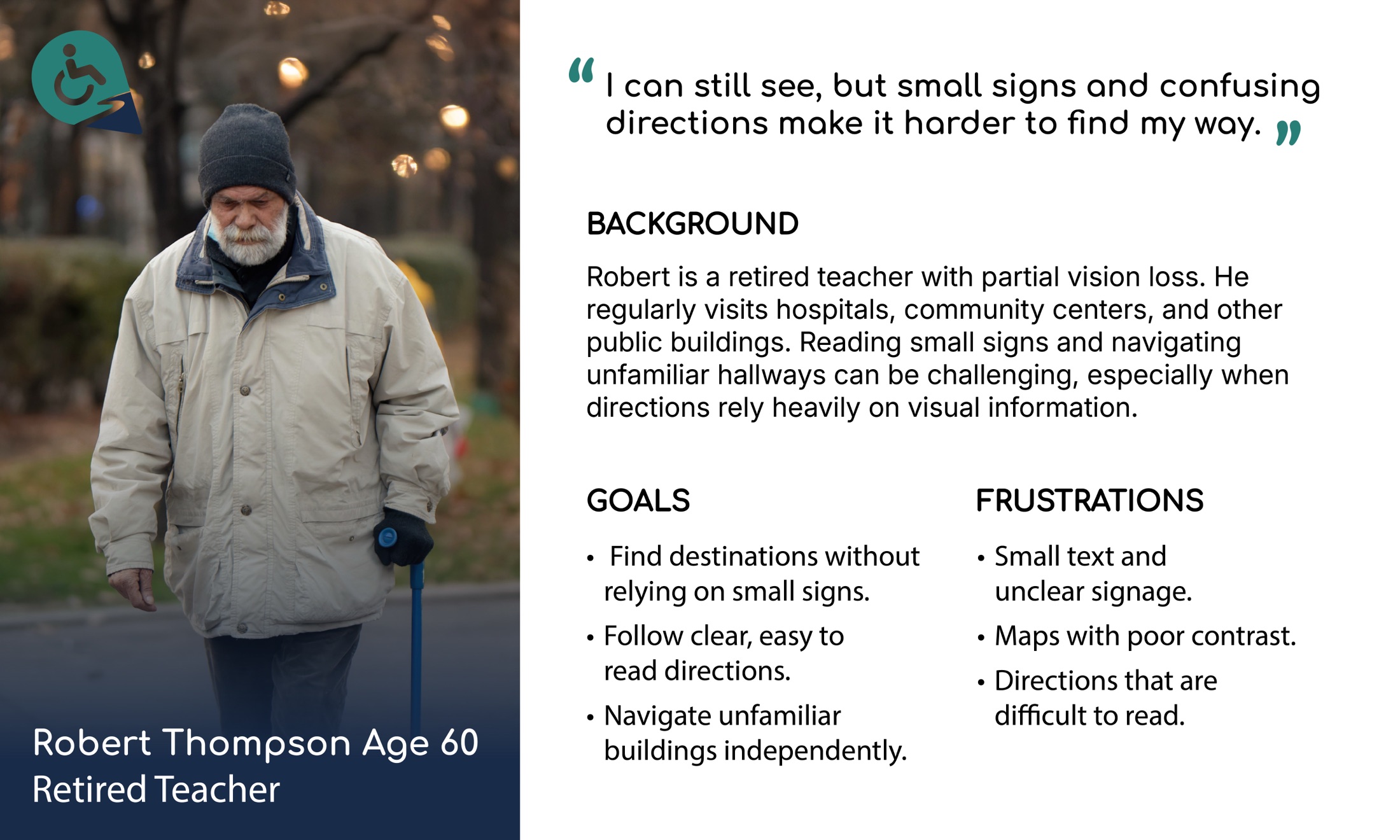
I created three fictional personas to explore how people with different disabilities might use InPath. Each persona represents a different age group and accessibility need, helping me consider what features would be most useful.
What I took away.
Creating these personas helped me think about how different people might use the same app in different ways. While some users need accessible routes, others may need simpler instructions or information that's easier to see.
I wanted InPath to consider these differences without making the experience complicated.
Prioritizing what matters most.
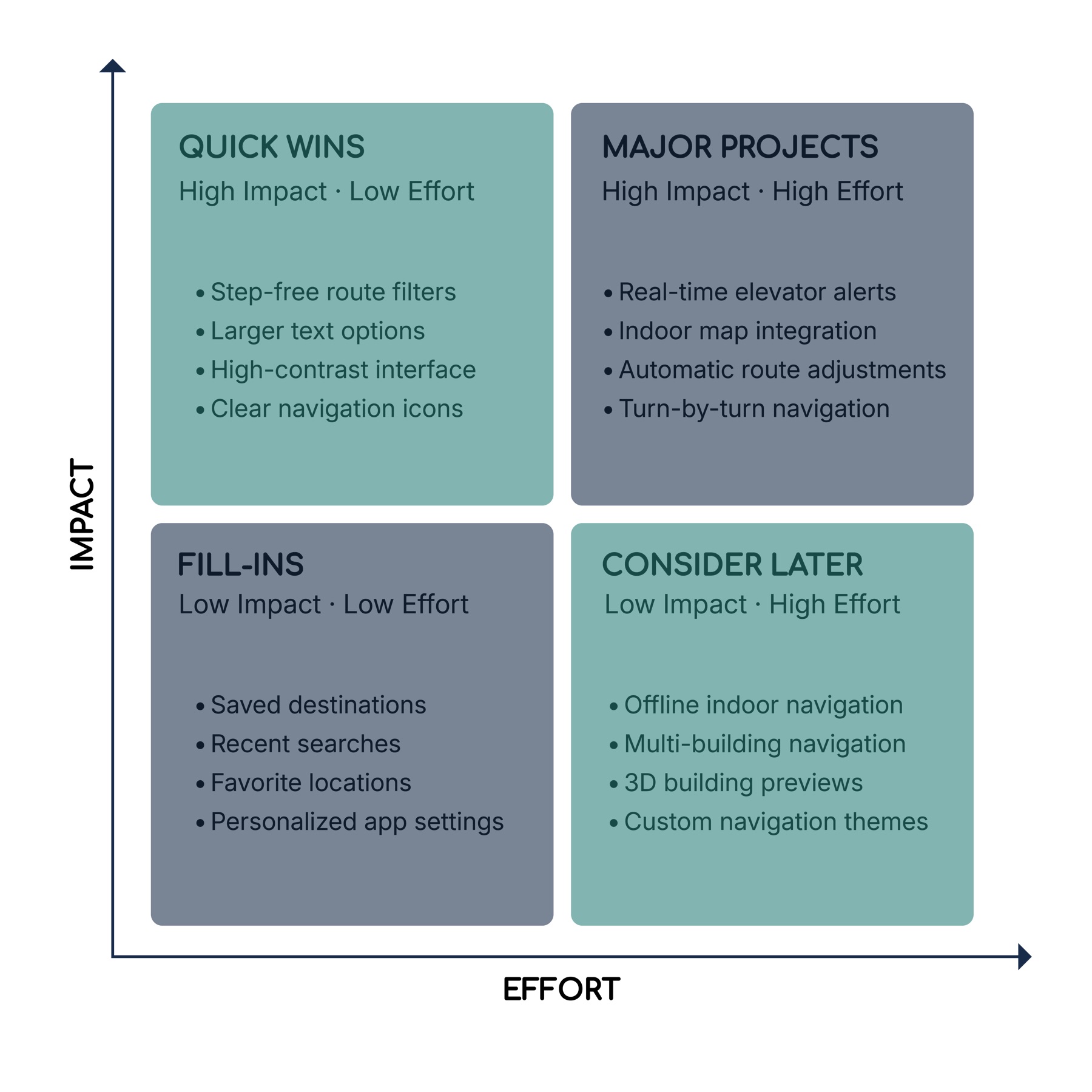
After identifying the different accessibility needs of my users, I created an impact-effort matrix to help determine which features would be most valuable and how much effort they might take to develop.
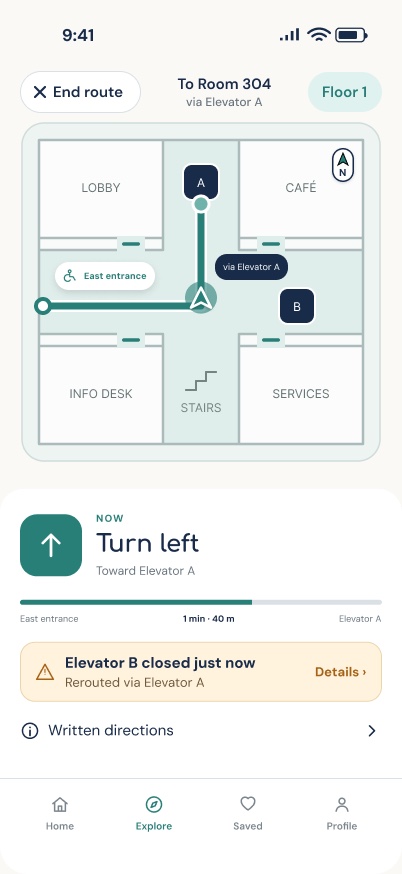
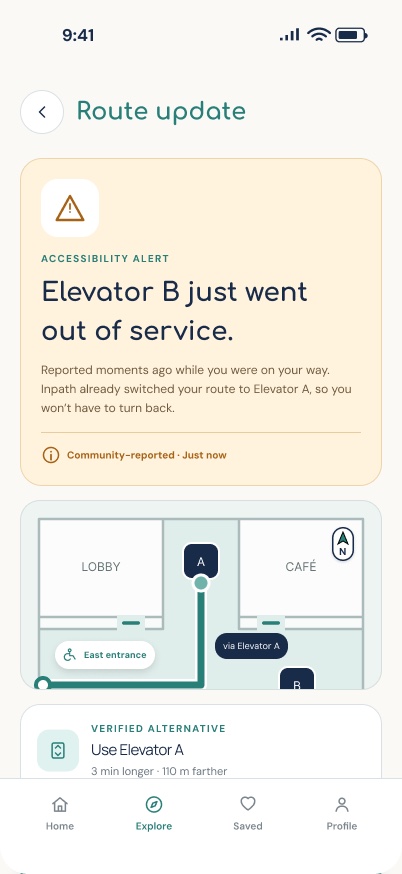
I focused on prioritizing features like accessible route preferences, clear navigation, and larger text options because they directly address the challenges users may face. More complex features, such as real-time elevator alerts and automatic rerouting, were also important to consider but would require additional technology and building information.
This helped me decide which features to focus on first while keeping the overall experience simple and accessible.
Starting with ideas.
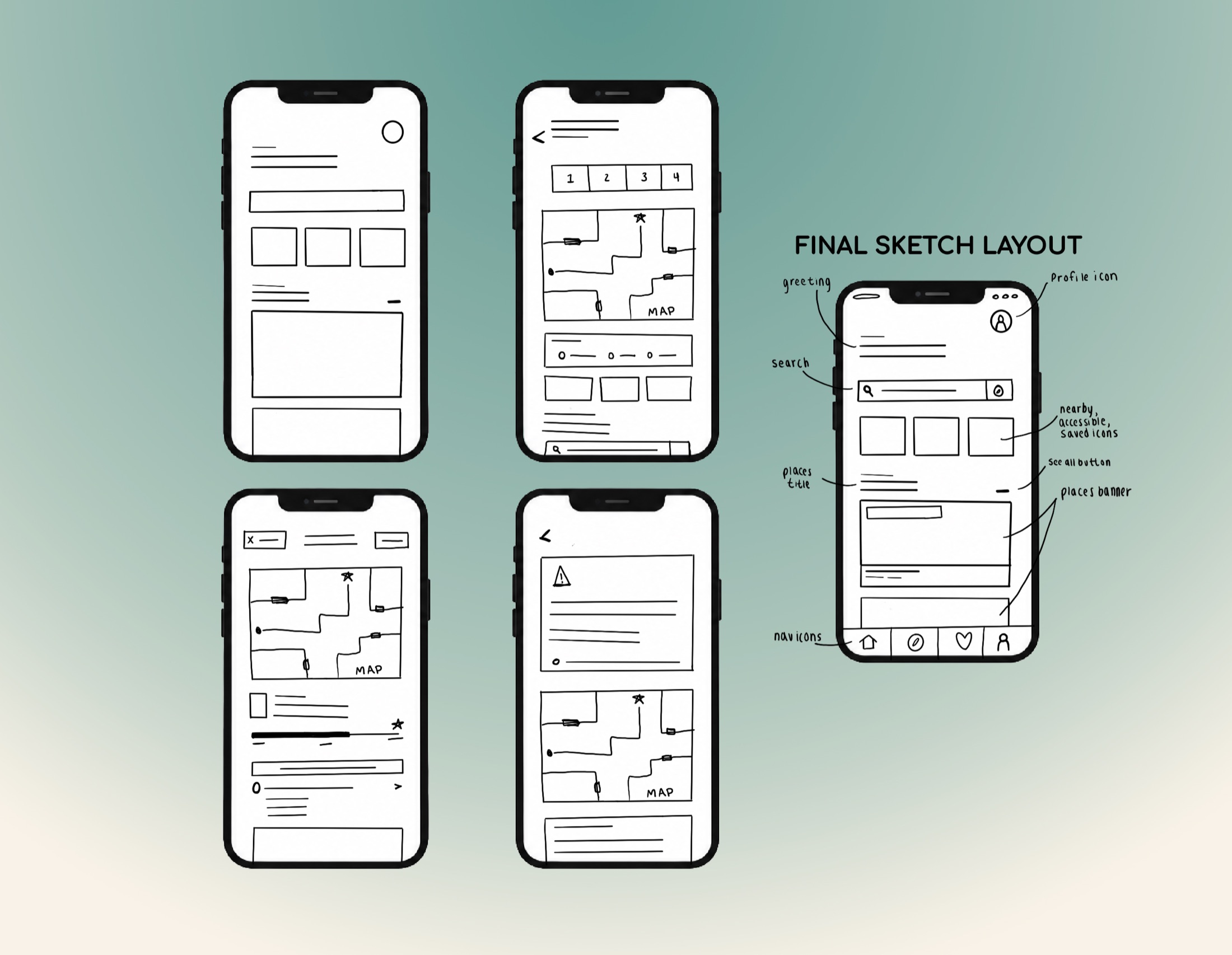
Before moving into Figma, I started exploring different layouts for the app through sketches. I focused on how users would search for destinations, choose accessible routes, and follow directions through a building.
At this stage, I wanted to try different ideas and figure out where important features should go before focusing on the visual design.
Putting everything into place.
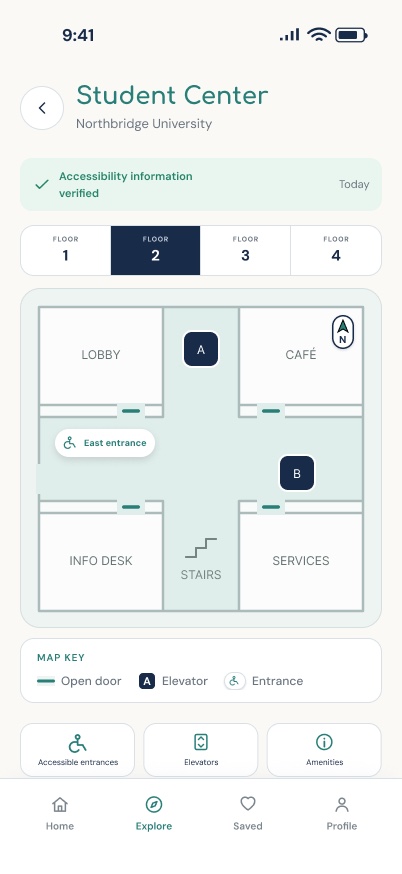
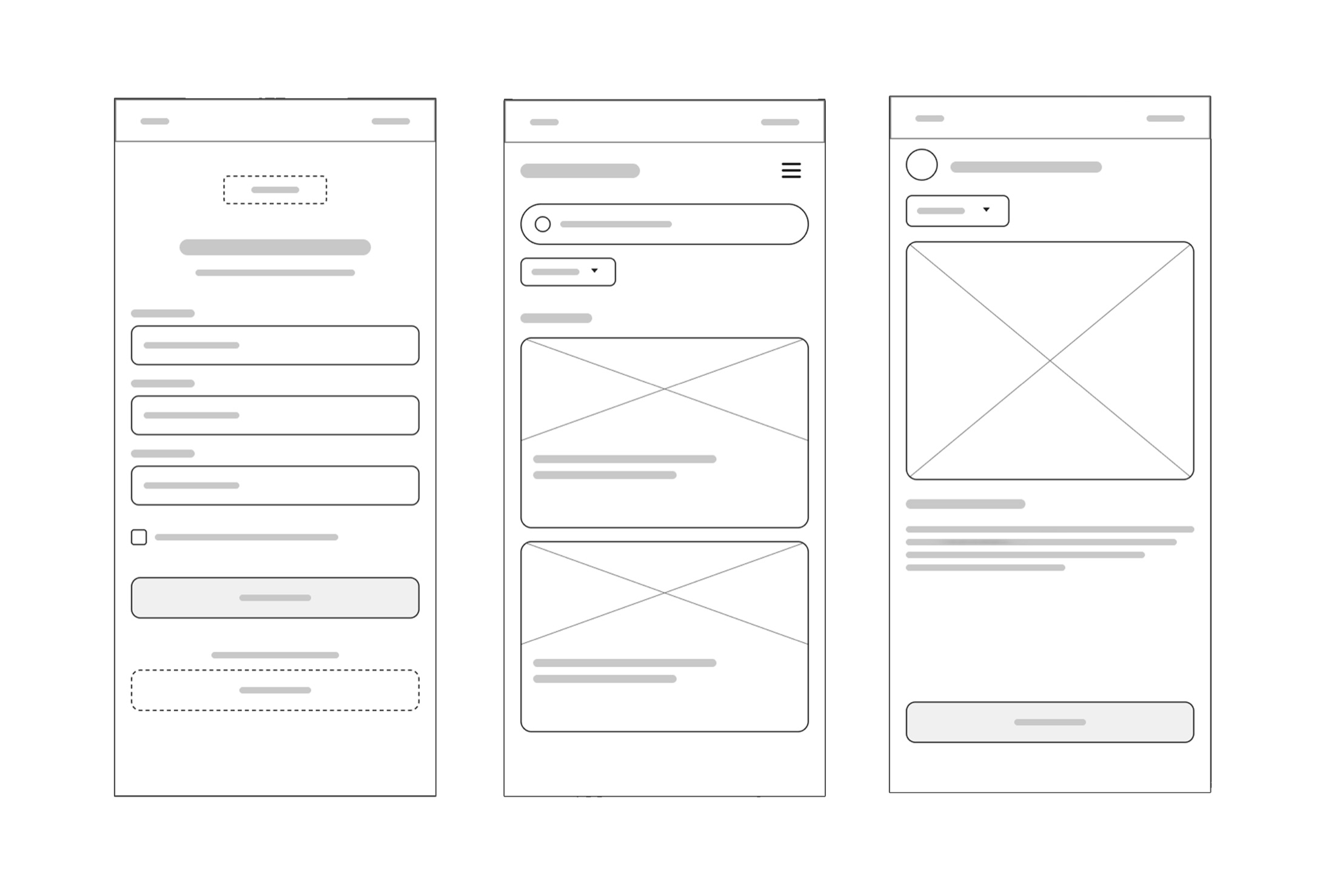
After exploring my initial ideas, I moved into Figma to create wireframes for the first three screens: creating an account, the home screen, and a building overview.
Using simple shapes and placeholder text, I focused on where the search bar, filters, building map, and main buttons should go before adding any color or detail.
Seeing how it all connects.
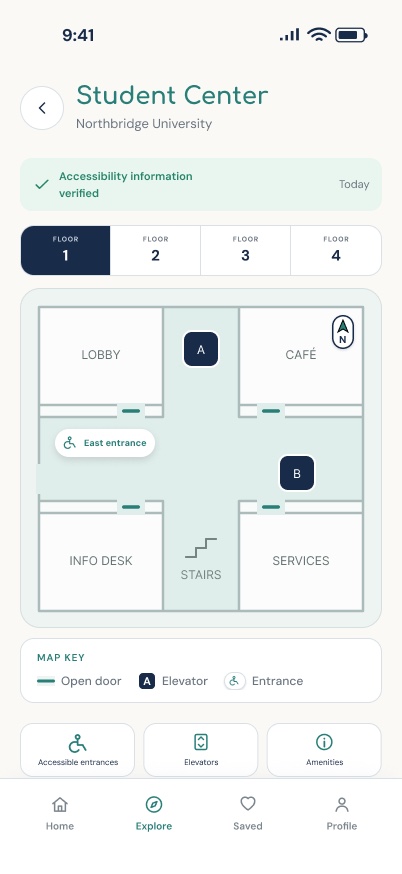
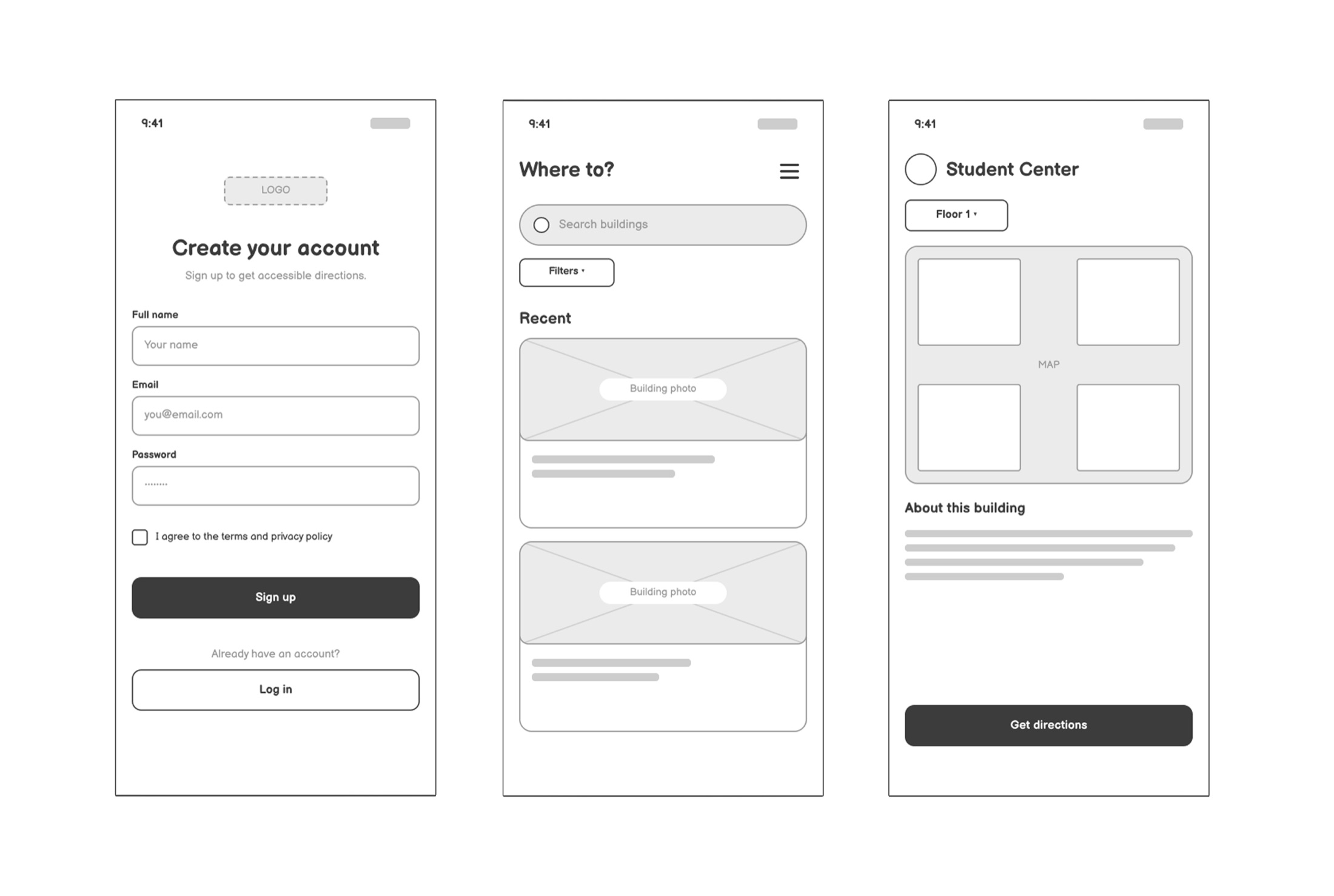
Once the wireframes were created, I added basic labels and connected the screens in Figma to build a clickable prototype. Users could sign up, search for a building from the home screen, and open a building to view its floors and map.
This helped me see how the first steps of the app connected and gave me something real to test before moving into high-fidelity design.
Finding what needs improvement.
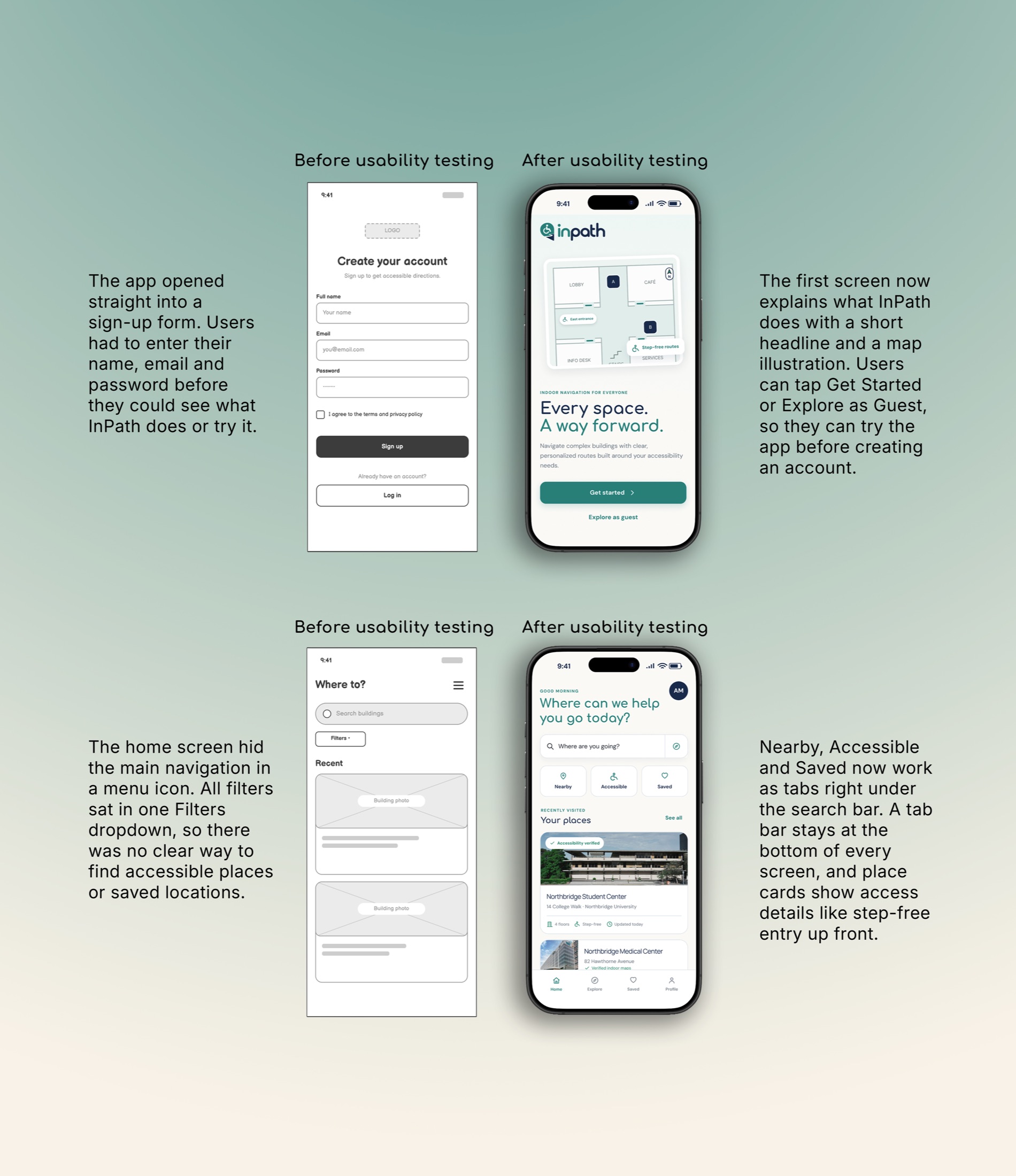
I tested the low-fidelity prototype to see whether users could get into the app, find a destination, and understand where to go next without needing help.
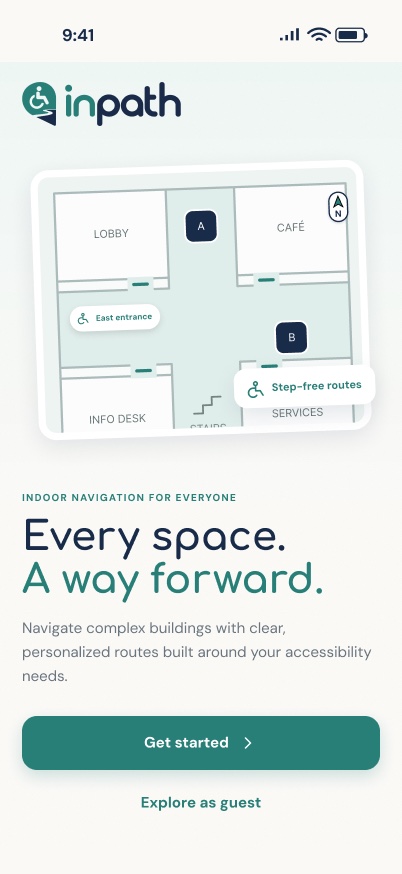
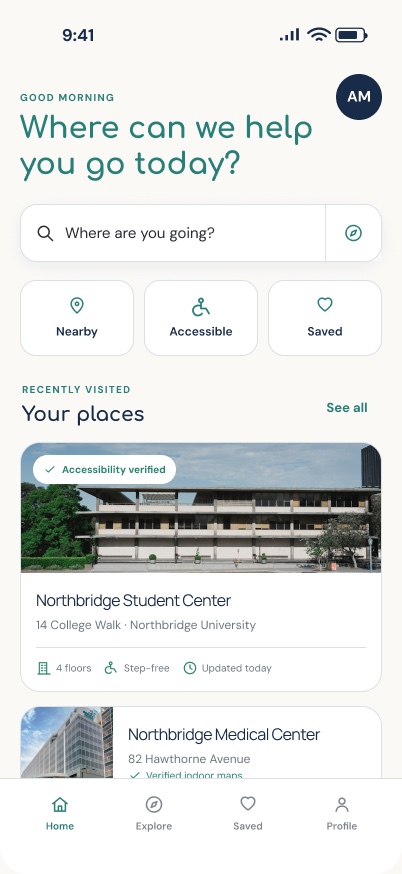
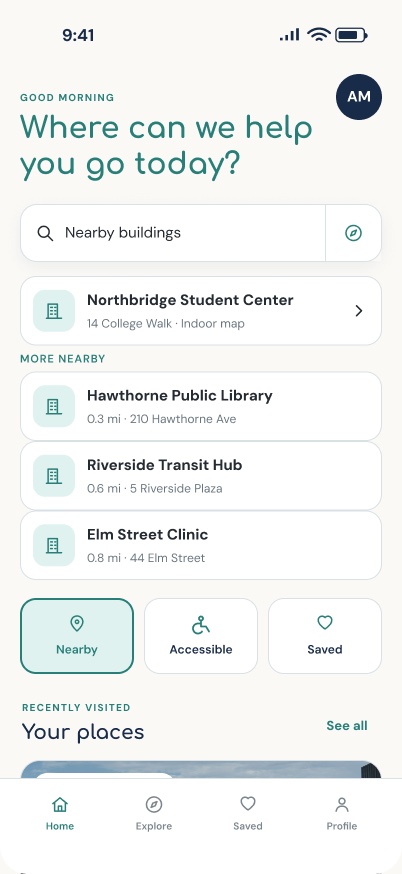
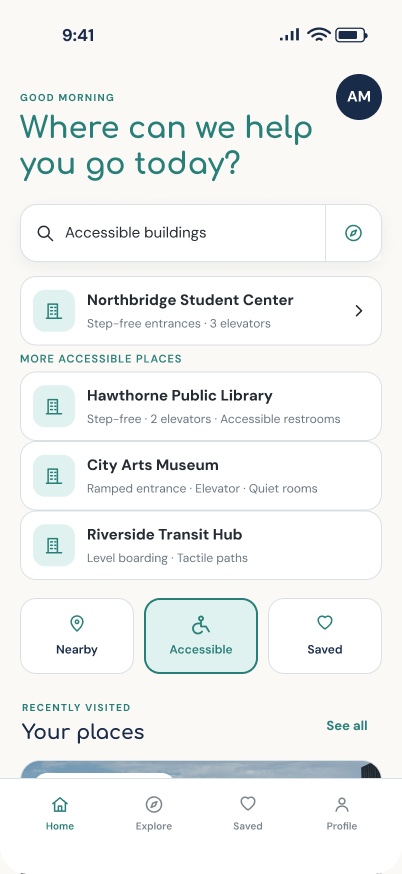
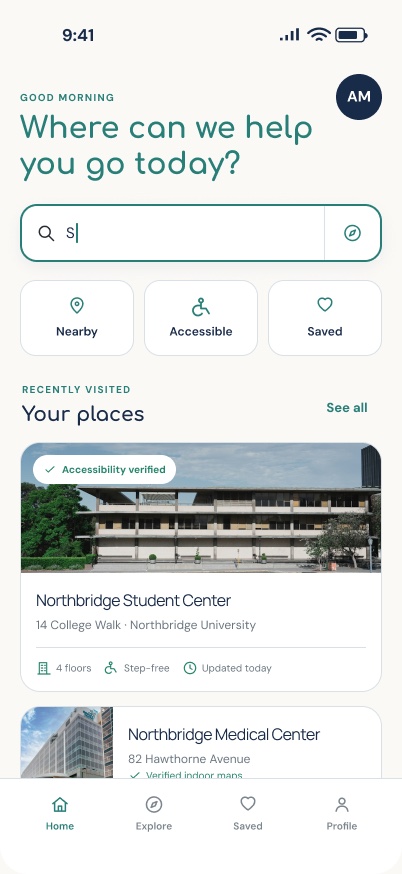
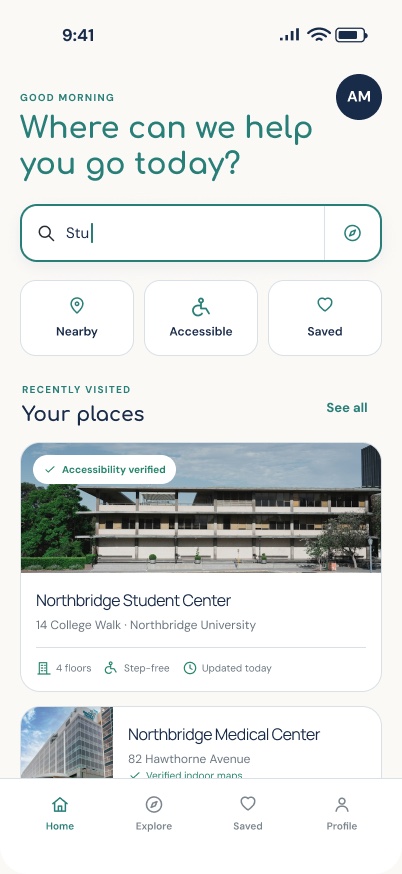
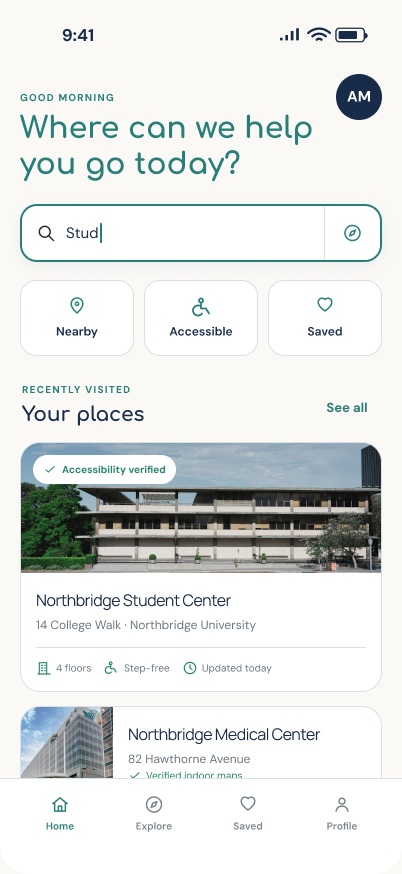
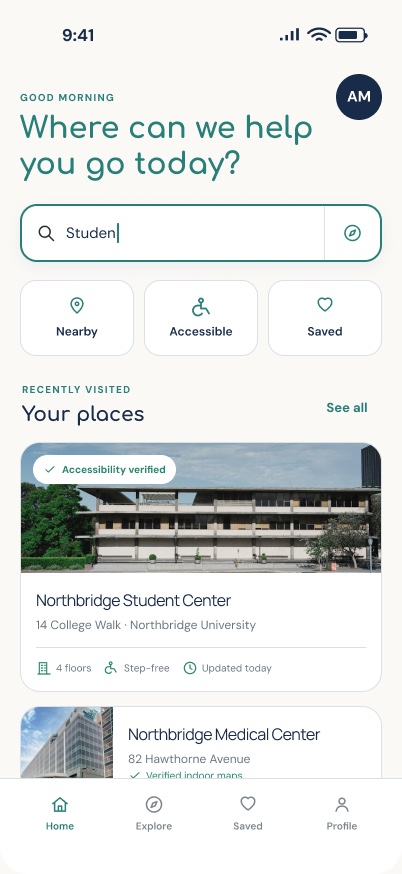
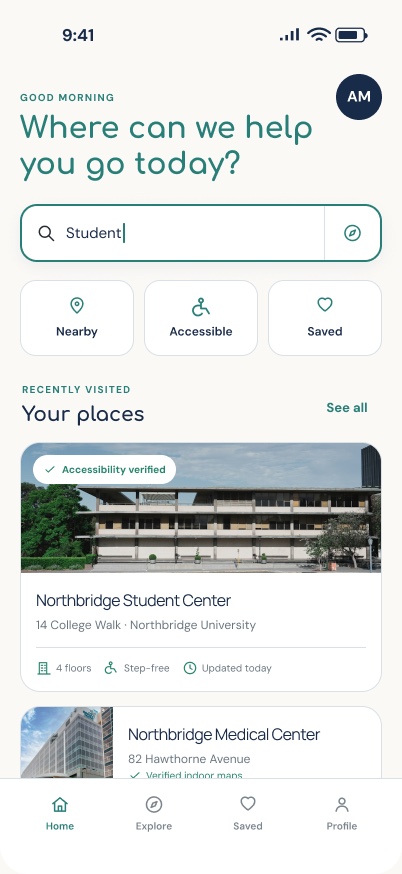
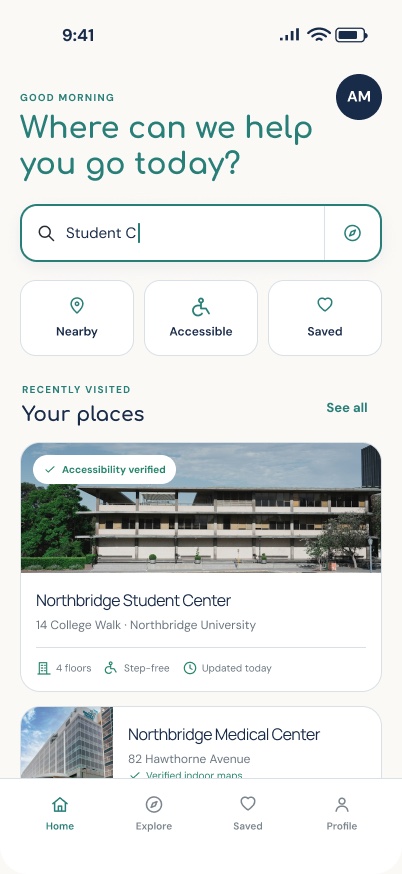
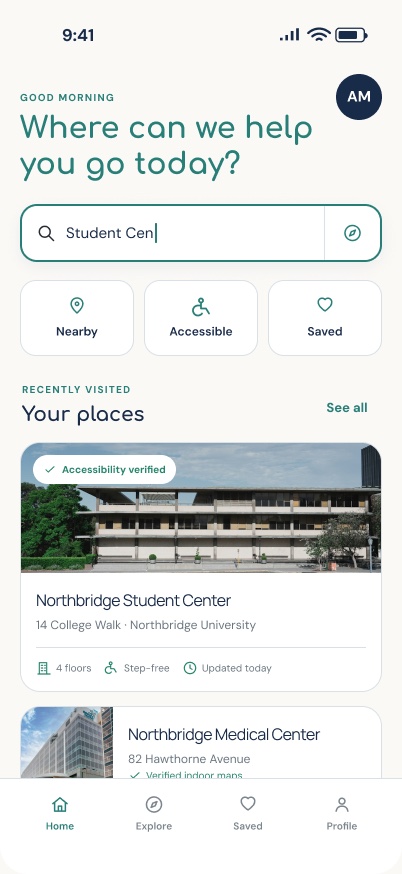
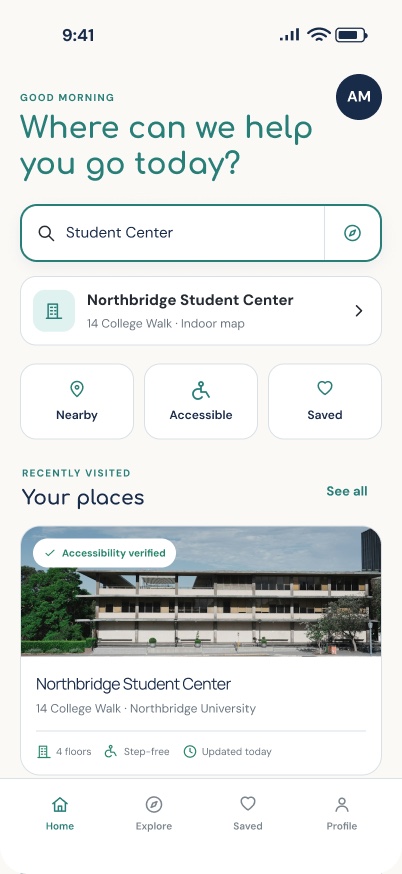
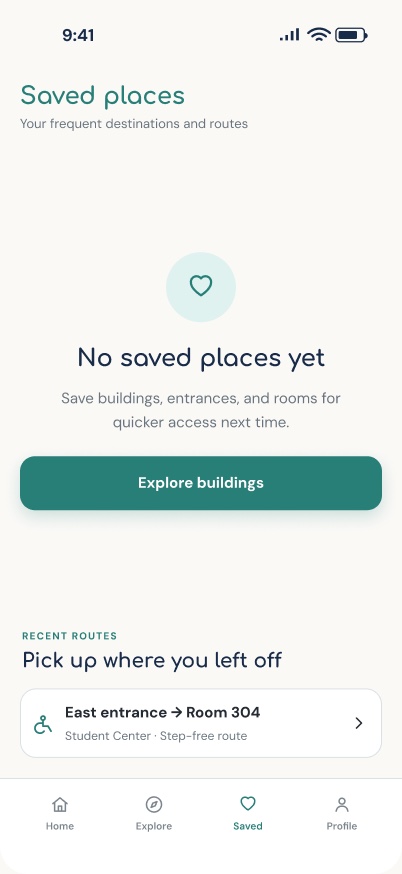
Testing showed that asking people to create an account right away made it harder to get started, and that hiding navigation and filters in menus made important features difficult to find. I redesigned the first screen with a guest option, and moved Nearby, Accessible, and Saved into clear tabs with a tab bar on every screen.
Navigation that works for you.
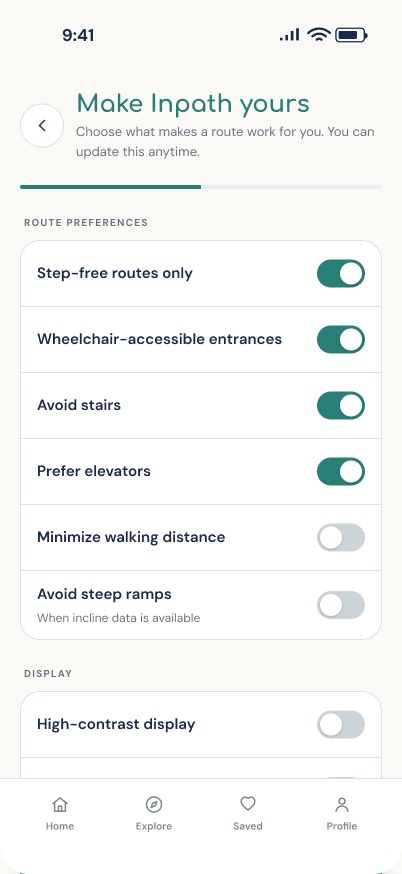
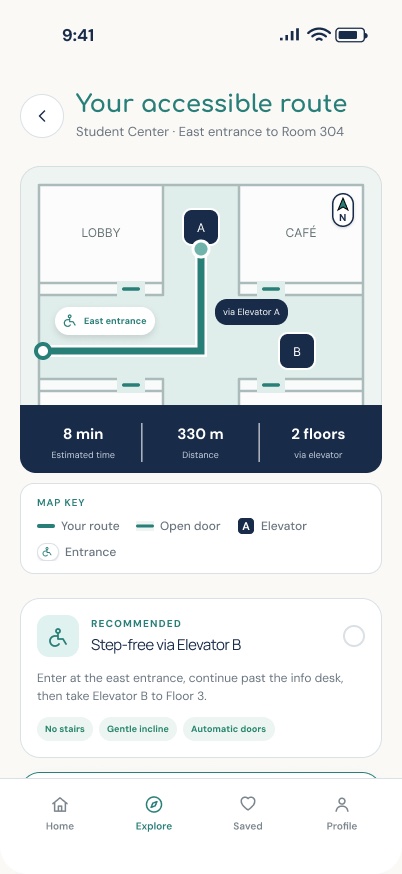
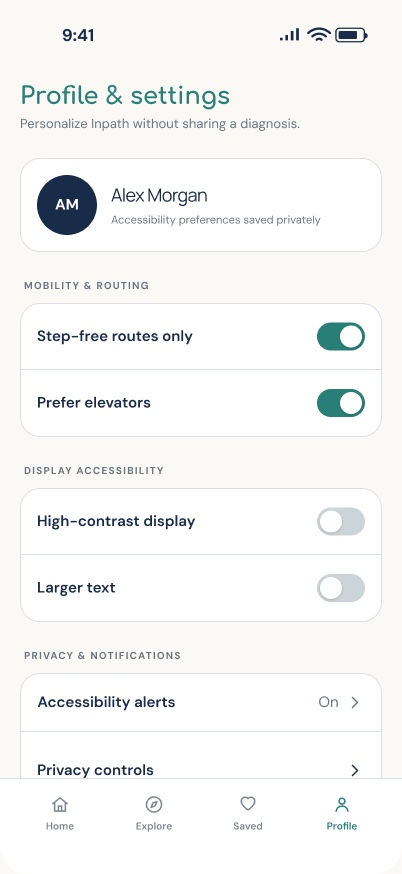
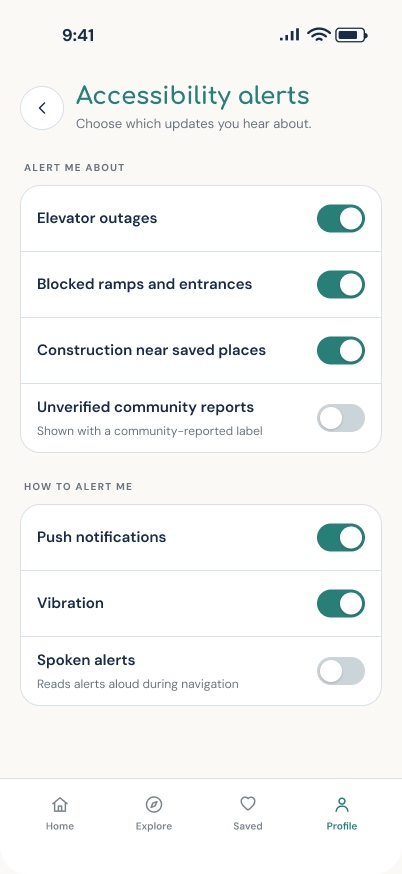
InPath is designed to make indoor navigation more accessible by giving users control over the routes they take. Instead of focusing only on the shortest route, the app allows users to choose preferences based on their needs.
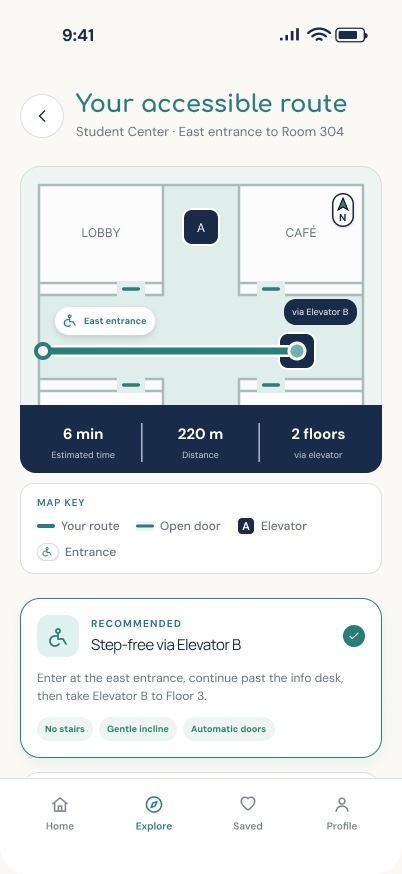
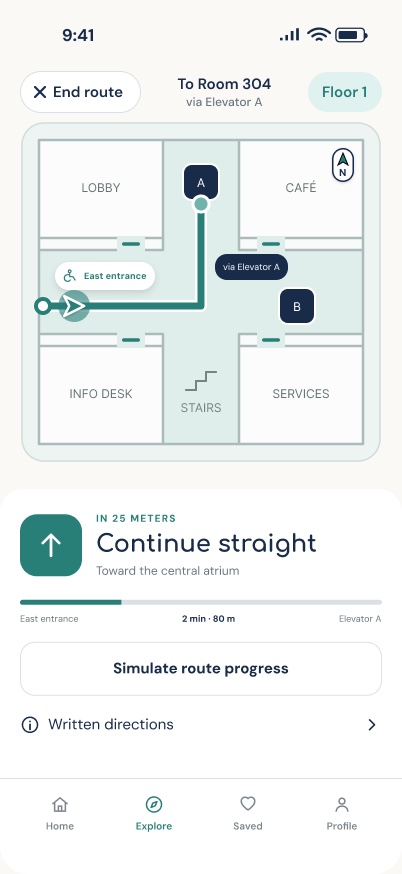
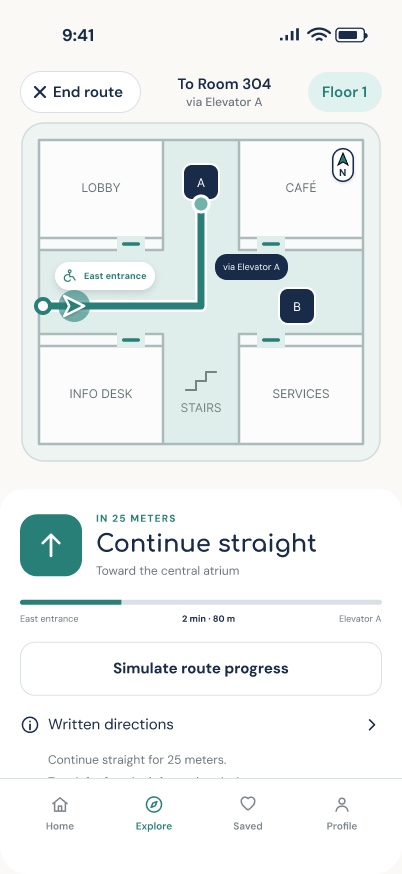
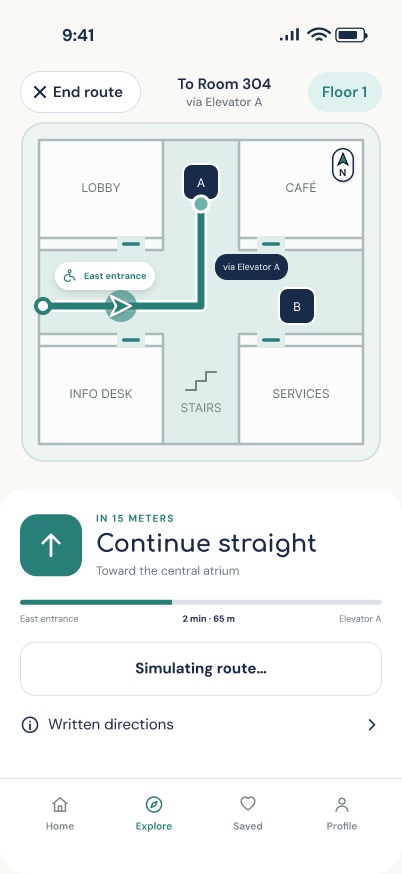
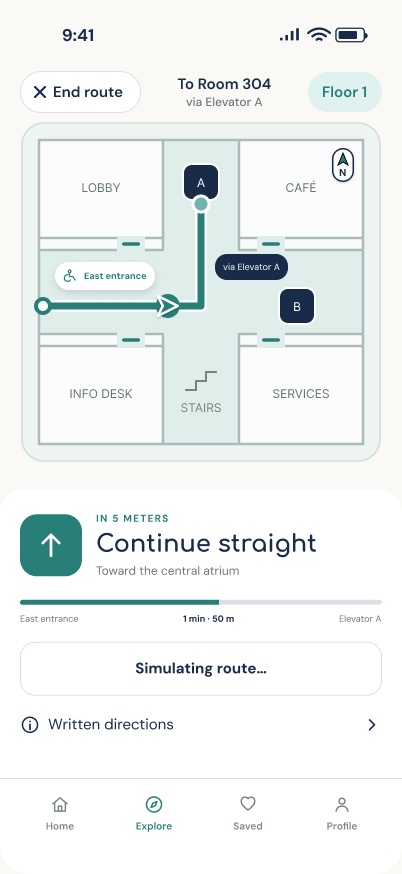
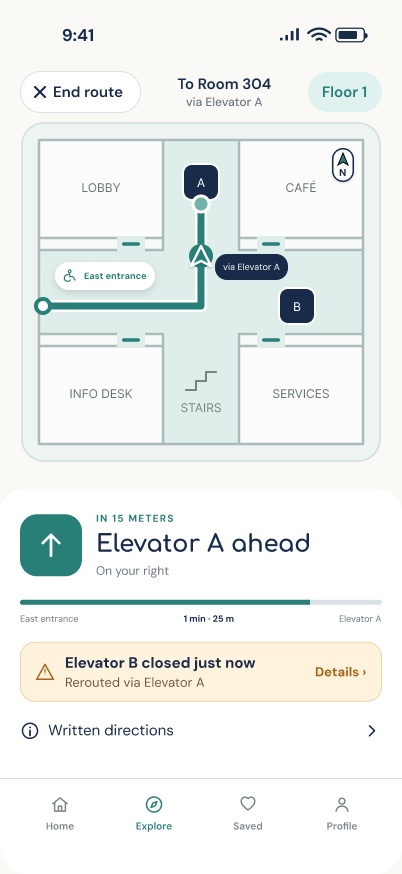
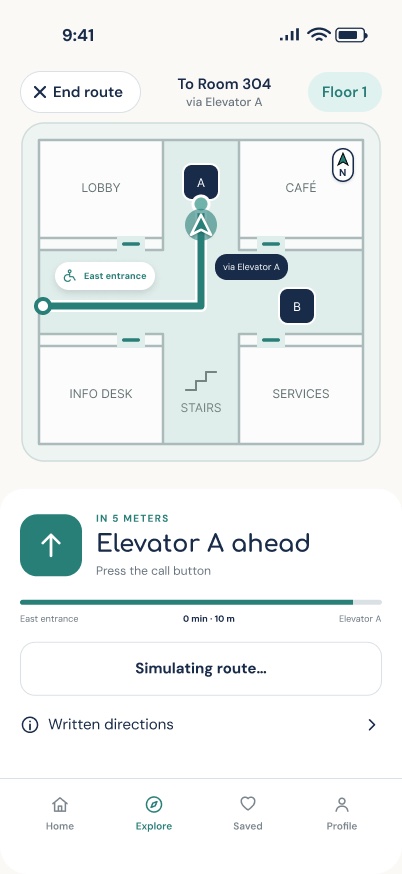
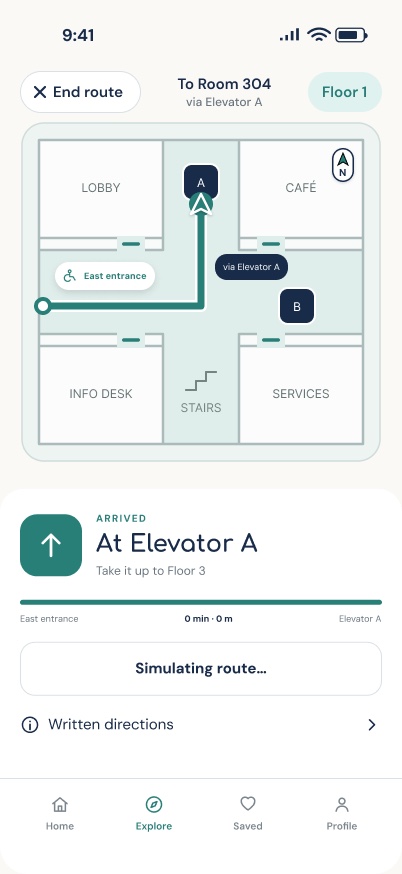
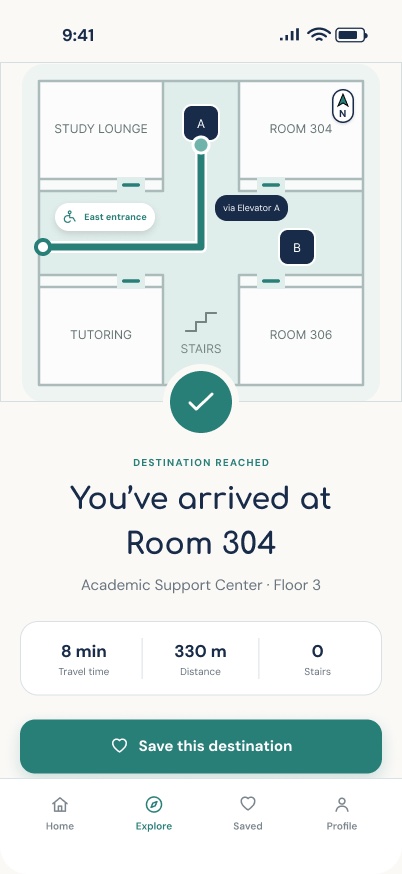
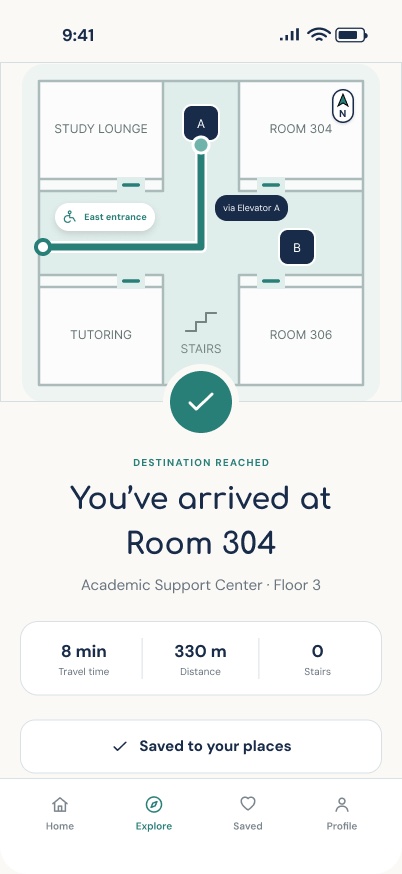
The concept includes destination search, accessible route options, indoor maps, and step-by-step navigation. I wanted users to be able to find a route that works for them before they start moving through a building.
Making the important things easy to find.
One of my main priorities was making accessibility options easy to access. Rather than hiding route preferences in the settings, I wanted users to be able to choose them before starting navigation.
I also focused on using clear labels, recognizable icons, and consistent buttons throughout the app. I wanted the design to feel straightforward so users could focus on finding their way rather than figuring out how to use the interface.
Keeping it clean and simple.
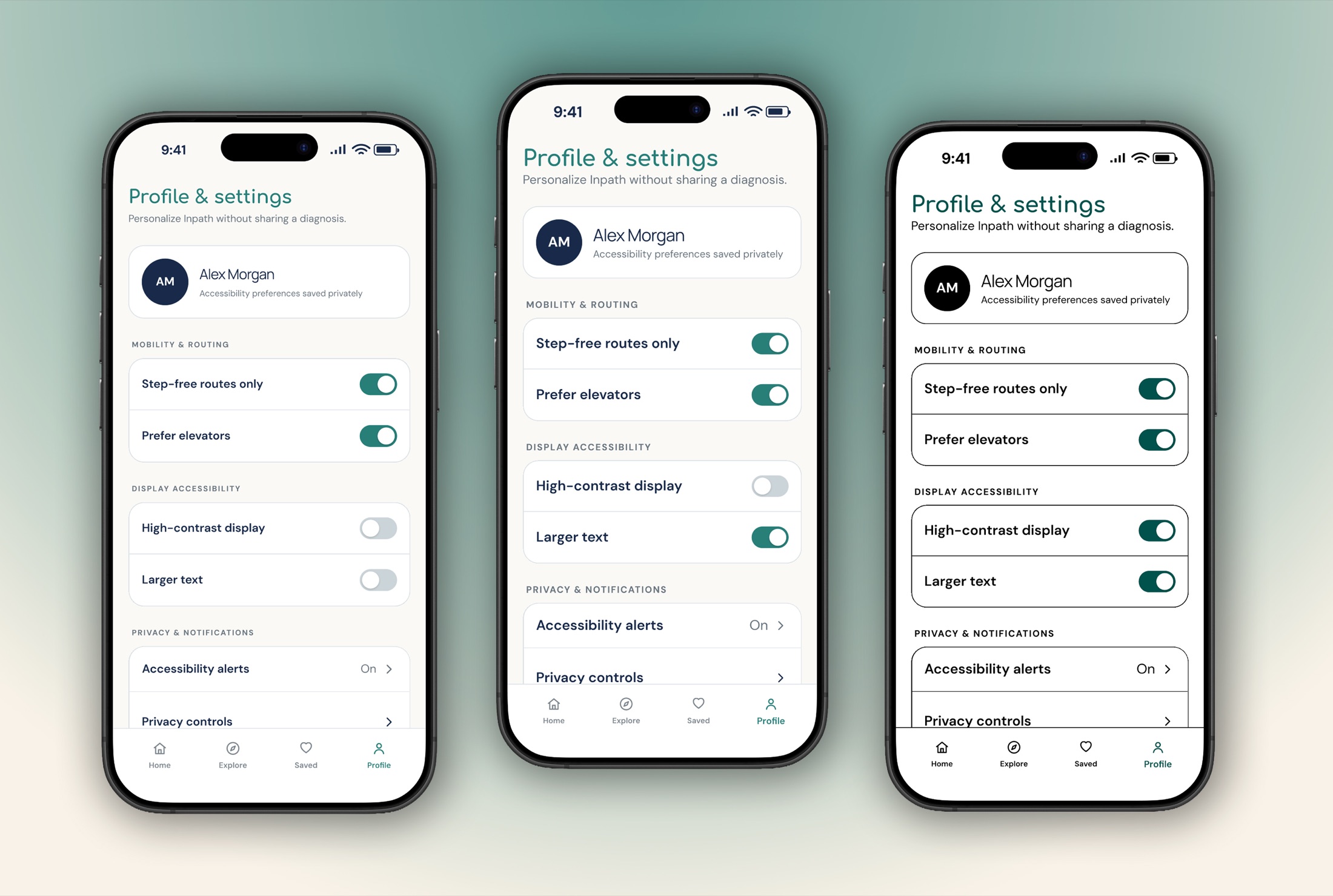
For the visual design, I wanted InPath to feel modern and approachable without being distracting. I focused on readable typography, a simple color palette, and icons that would help users recognize important features.
I also wanted the screens to feel consistent so users wouldn't have to relearn how things worked as they moved through the app. Larger text and high-contrast settings update every screen at once, so the app can adapt for people with low vision, like Robert.
Bringing everything together.
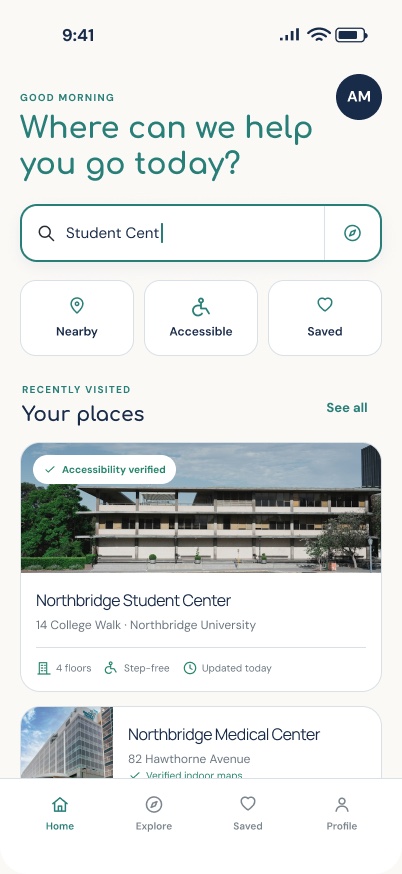
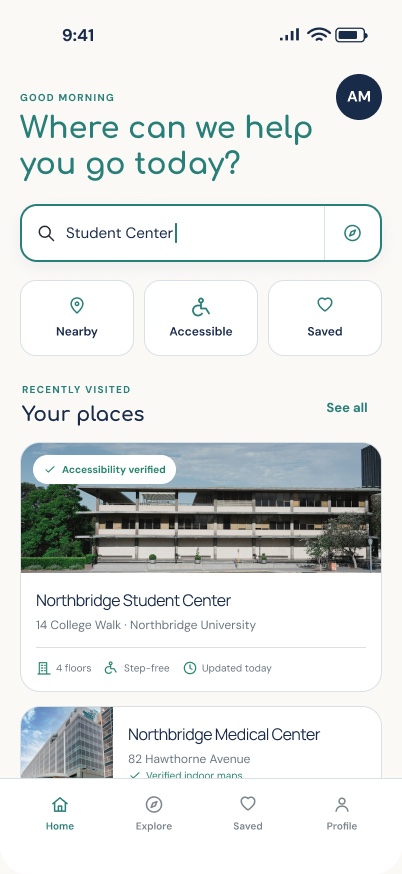
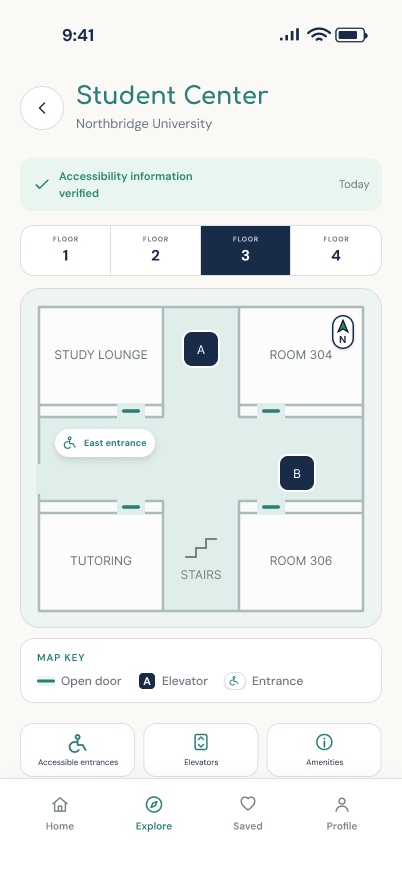
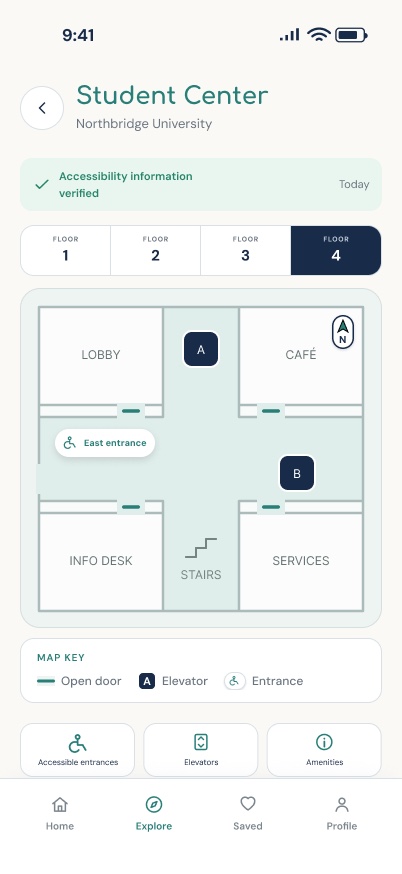
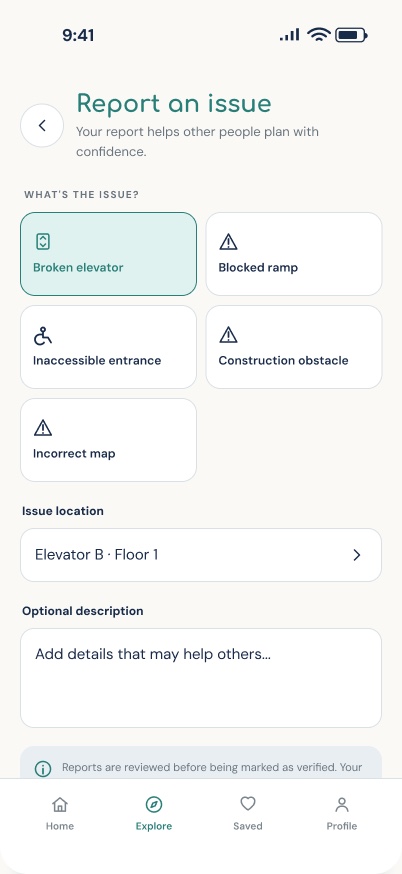
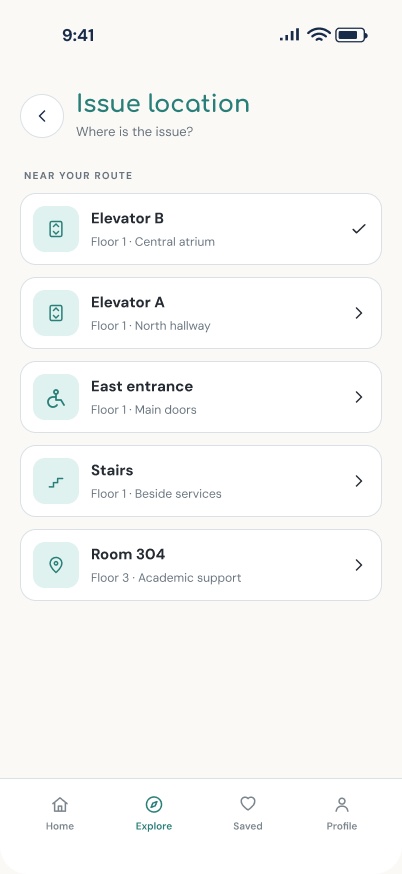
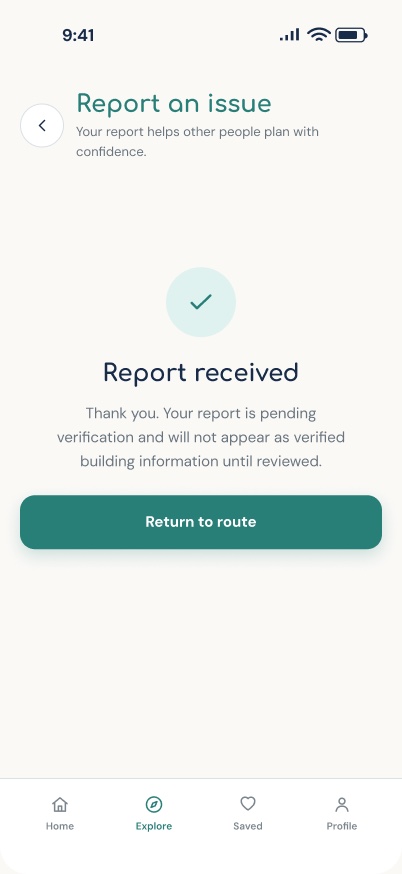
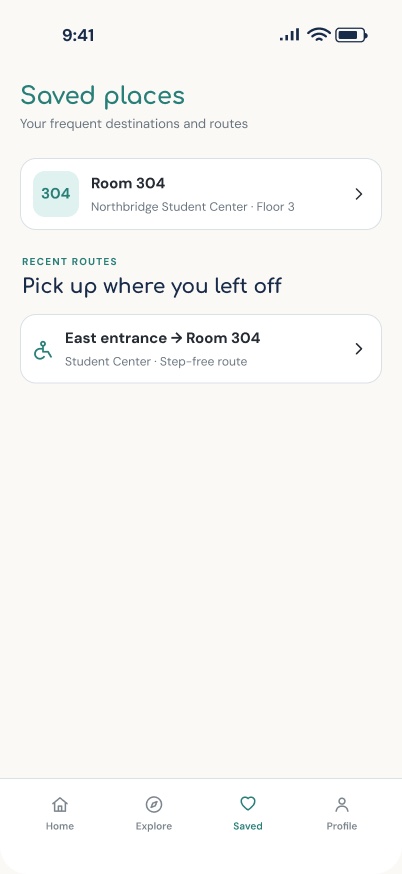
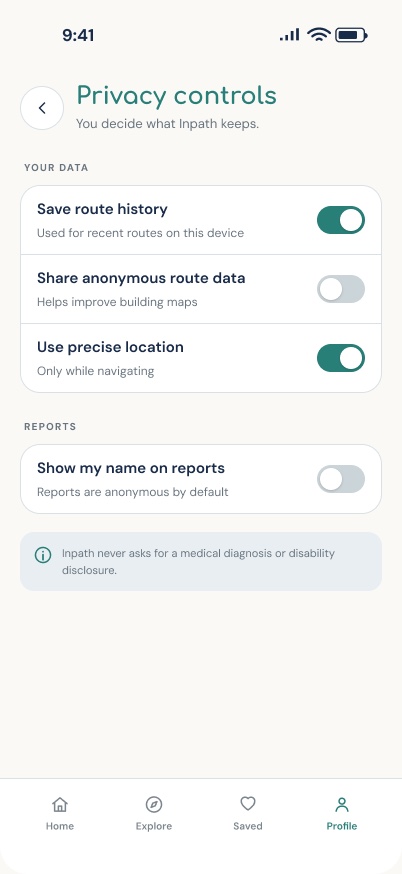
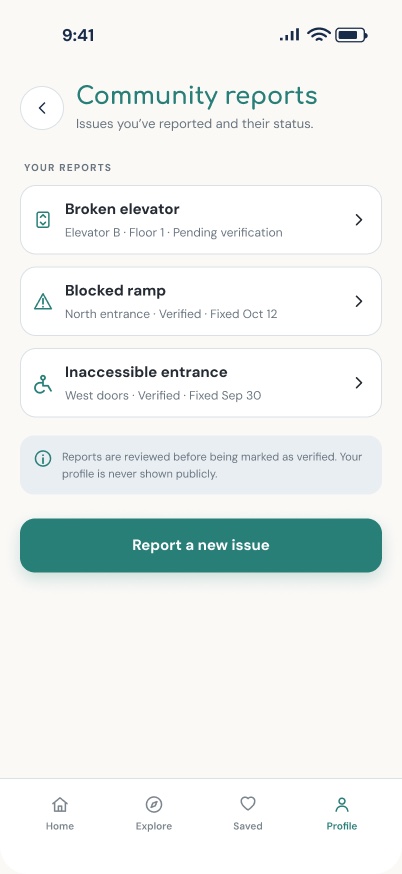
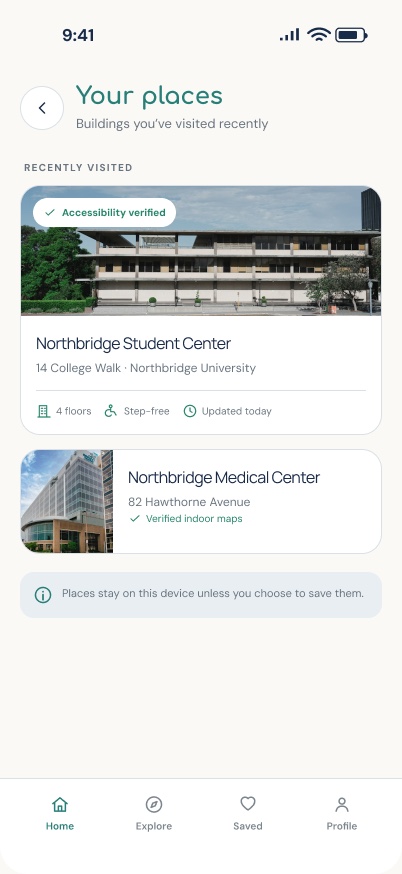
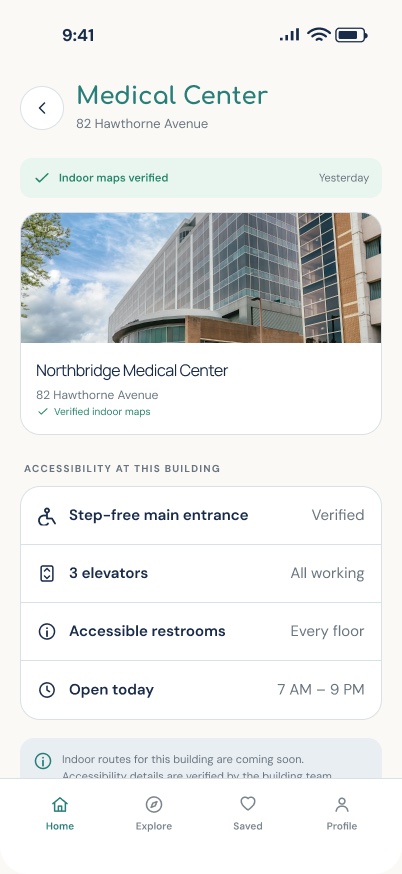
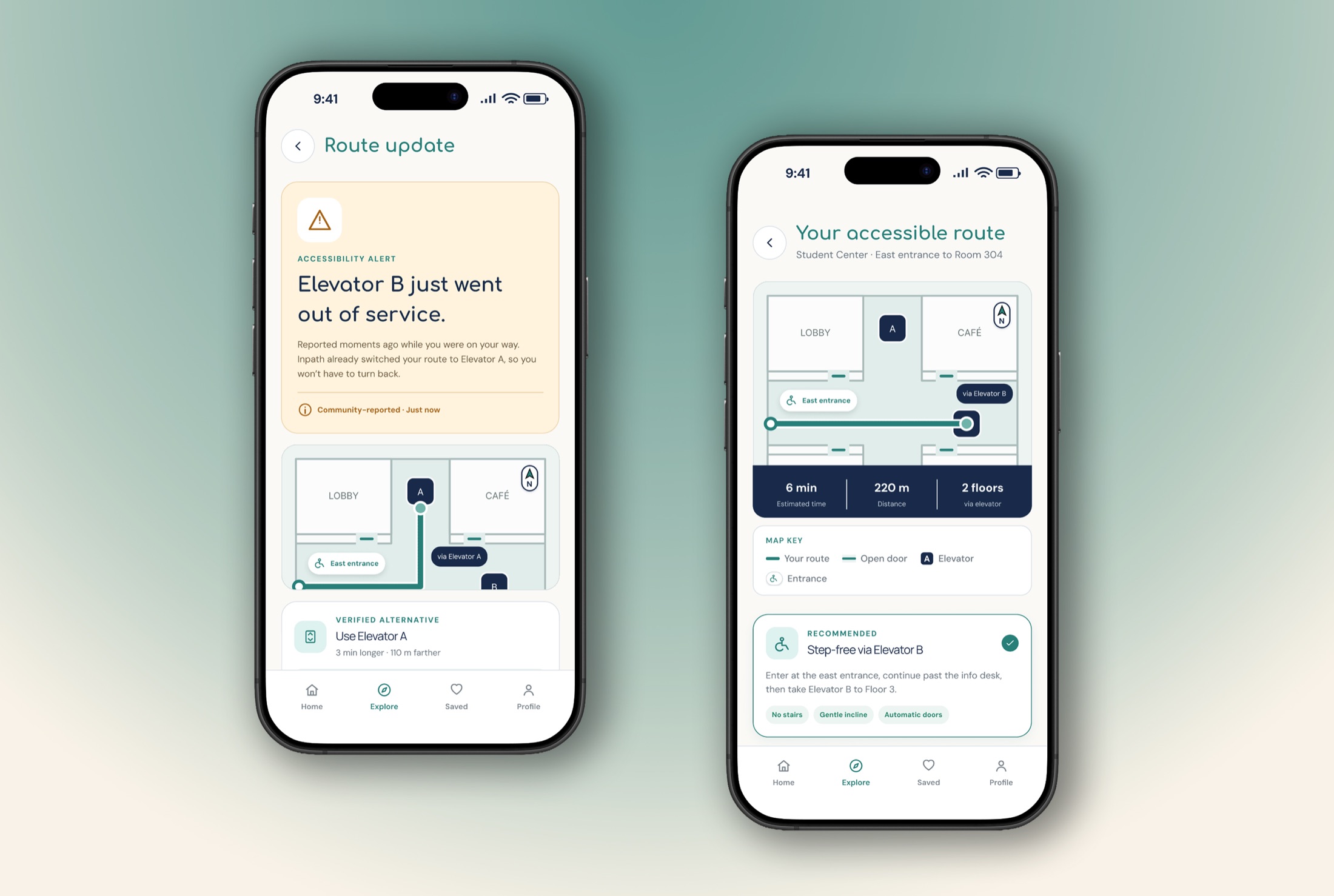
After working through the layouts and navigation flow, I developed the high-fidelity screens in Figma. The final concept brings together destination search, accessibility preferences, indoor maps, and route guidance in one interface.
I wanted accessibility to feel like a natural part of the experience rather than an extra feature users had to search for.
What I learned.
Working on InPath made me think more about how differently people experience the same spaces. A route that works for one person might not work for someone who uses a wheelchair, has limited mobility, or has difficulty reading signs.
This project helped me focus on more than just how an app looks. I wanted to think about what information someone would actually need to navigate a building with more independence.
Moving forward, I want to test InPath with more people, especially wheelchair users, people with limited mobility, and people with low vision, to see how much the app would actually benefit them. Their feedback would guide the next round of changes, along with exploring how the app could work with real building maps and accessibility information.
Explore InPath.
The interactive Figma prototype shows how users can move through the app, from searching for a destination to selecting accessibility preferences and starting navigation. Click or tap through the screens below.
All screens